Browsing Templates
How to search, sort and filter templates by category, and what each template card tells you.
Browsing Templates
The Templates page is where you discover the books you can create. Each template is a different style of personalized book with its own questionnaire, cover art, and story structure.
Searching and Sorting
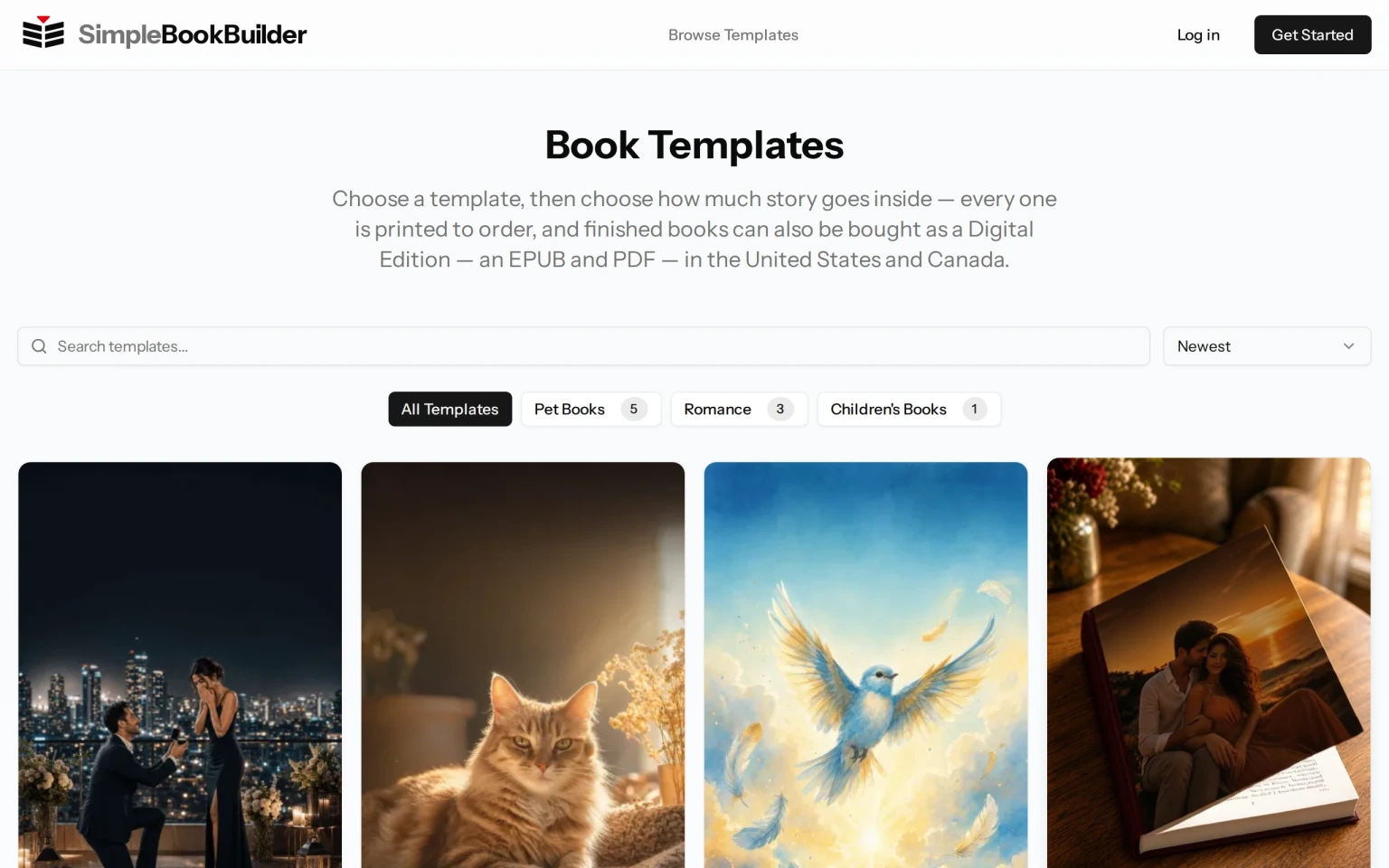
At the top of the page there is a search box, marked “Search templates…”, which narrows the list as you type.
Next to it is a sort control offering Newest, then price low to high and price high to low, then Most Popular. The two price options are labeled with the name of the Written For You edition, and they sort on each template’s main price rather than on the cheapest edition it sells. The cards themselves advertise the cheapest edition a template sells, so the order will not always match the number printed on the card.
Category Filters
Below that you will find All Templates plus a filter button for each category we currently offer — for example pet books and romance. Each button shows a count of available templates so you know how many options are in each group.
Categories change as we add new kinds of books, so the buttons on the Templates page are always the authoritative list rather than anything written here.
Template Cards
Templates appear as cards in a grid. Each card shows:
- A preview image of the book. Some templates have a short video preview that starts when you hover over the card.
- The category badge so you can see which group it belongs to.
- The template name and its price. Where a template sells more than one edition, the card shows “from” that template’s cheapest edition, and names which edition that is.
- A short description of what the book is about.
- The page count range.
- Where the template has more than one cover design, a row of small covers under the picture. Click one and the big picture changes to that cover, and it is the cover carried through when you open the template. If there are more covers than fit, arrows at the left and right edges of that row scroll it along.
There is no “view details” button to look for. The card itself is a link: clicking the picture, the name or the description opens that template’s detail page. The small covers and the two scroll arrows are the exception — those change which cover you are looking at instead of opening the page.
If Nothing Comes Back
If a search or a category filter matches nothing, the page says No templates found and offers a View All Templates button that clears the search and the filter together.
Still have a question?
Support tickets are part of your account. Log in or create a free account to open one.