Changing Your Password
Change your password, what a new password has to contain, and how to reset a forgotten password.
Changing Your Password
You can change your password whenever you like, and you should change it right away if you think anyone else has seen it.
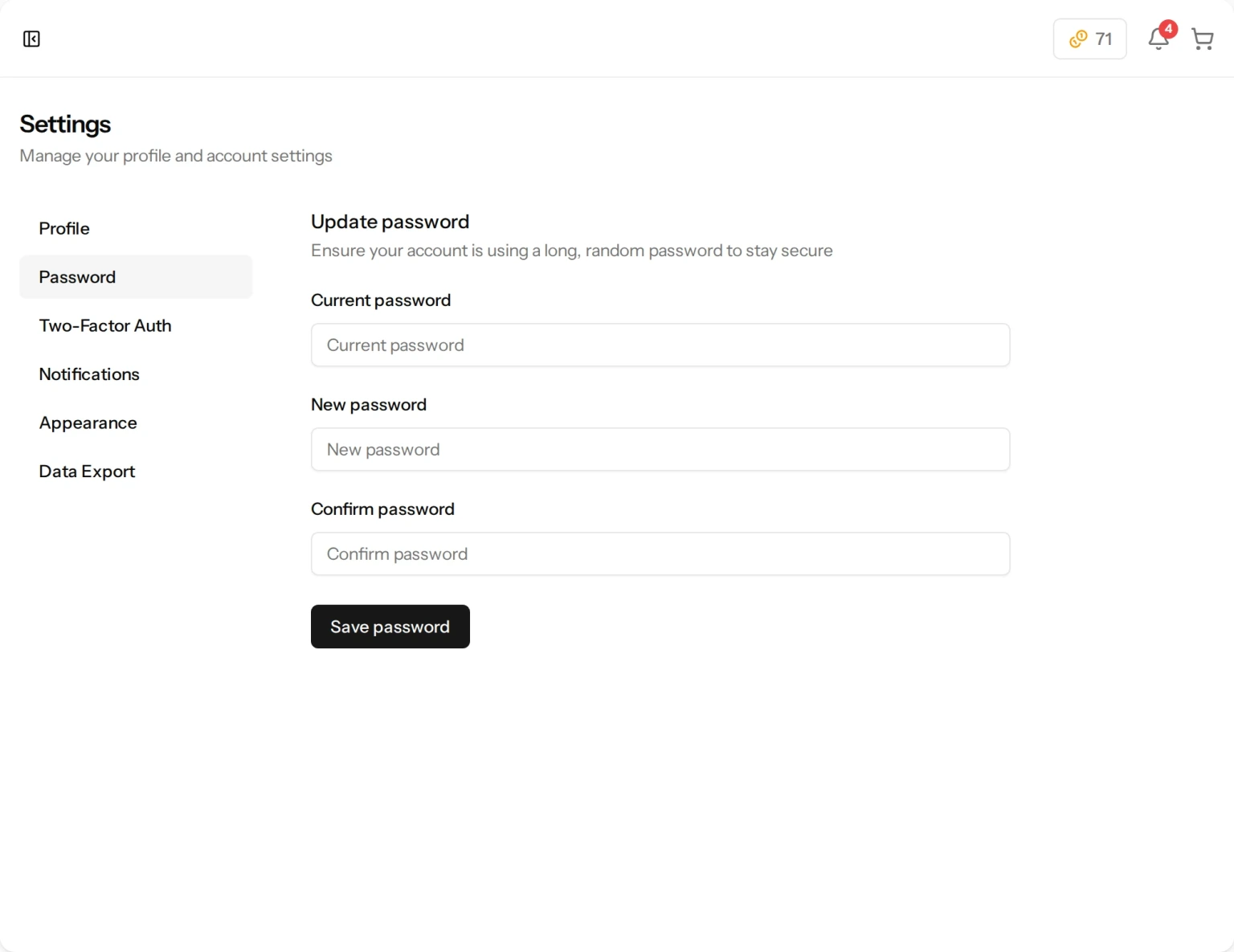
Changing It From Settings
- Go to Settings from the menu at the bottom of the sidebar.
- Open the Password tab, headed Update password.
- Type your existing password into Current password.
- Type the new one into New password, then again into Confirm password.
- Click Save password.
Changing your password signs you out of every other device you were signed in on. The tab you are working in stays signed in, so you will not be thrown out of the page you are on. If someone else had your password, this is what ends their access.
What a New Password Must Contain
These are requirements, not suggestions. A password that misses any of them is refused with an error rather than quietly accepted:
- At least 8 characters.
- At least one capital letter and at least one lower-case letter.
- At least one number.
- It must not be a password that has already appeared in a known public data breach.
Symbols are perfectly welcome, but they are not required — a long passphrase with a capital and a number in it is fine.
The breach check is the one that surprises people. We compare your chosen password against a public list of passwords that have leaked from other companies’ break-ins, because those lists are the first thing an attacker tries. If yours is on one, it is refused however long or clever it looks, and you will need to pick a different one. Your password itself is never sent anywhere to do this: only the first few characters of a one-way scrambled version of it are used for the lookup.
The same four rules apply when you first register and when you reset a forgotten password, so a password accepted in one place will be accepted in the others.
If You Have Forgotten Your Password
- On the sign-in page, click Forgot password?.
- Enter your email address and click Email password reset link.
- Open the link in the email we send and choose a new password.
The link goes to the address on your account, so this only works if you can still open that mailbox. If you cannot, write to us at support@simplebookbuilder.com.
Signing in afterwards still takes a second step: we email you a sign-in code as usual, or ask your authenticator app for one. Resetting your password does not change that. See Two-Factor Authentication.
Still have a question?
Support tickets are part of your account. Log in or create a free account to open one.