Your Book Dashboard
Understanding the My Books page — the In progress, Ready for you and Your library shelves, saved drafts, status badges, and the buttons on each book card.
Your Book Dashboard
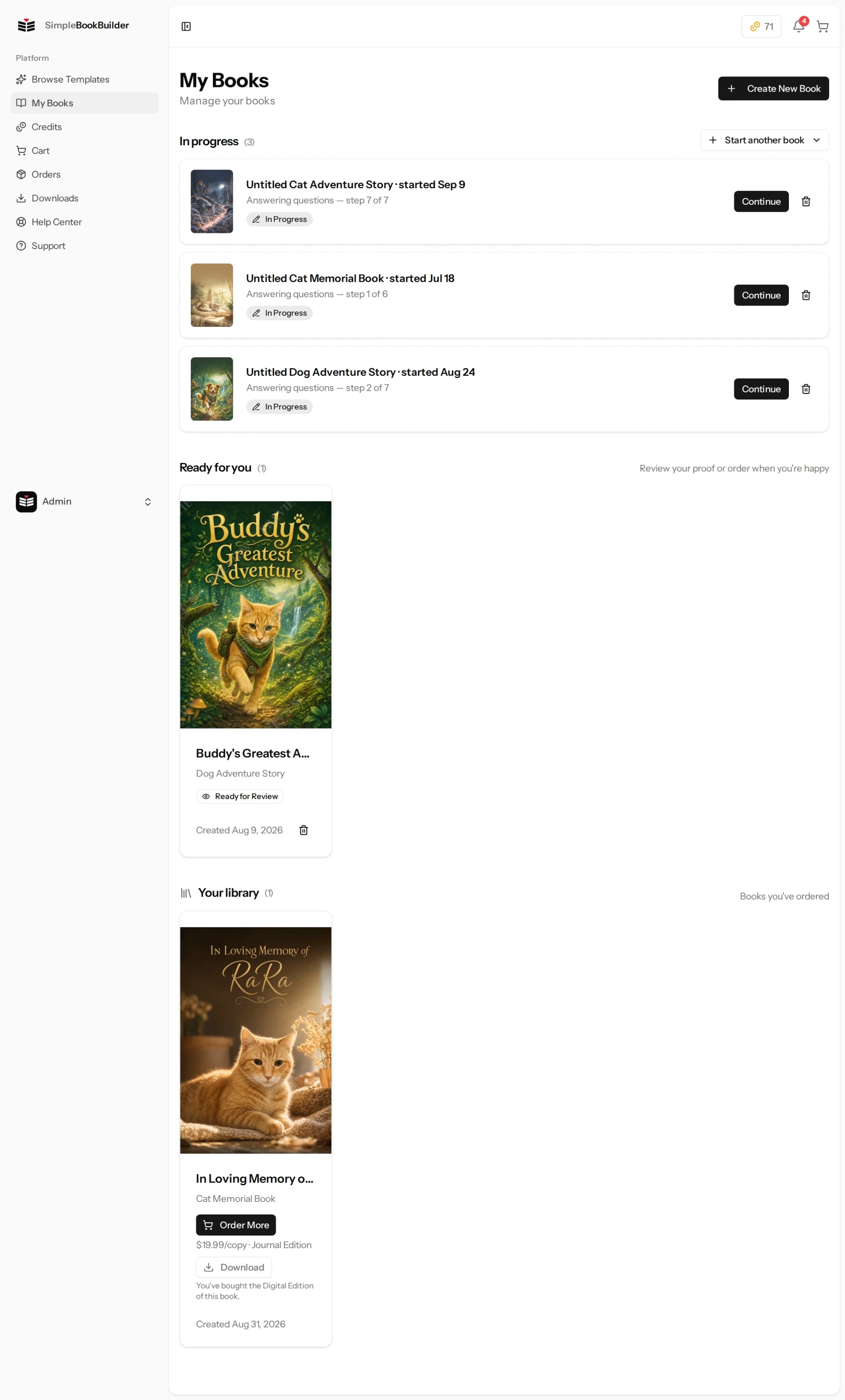
The My Books page is where everything you have started lives. It is organized into three shelves, and a shelf only appears when you have something on it. The Create New Book button at the top right starts a fresh one from any template.
The Three Shelves
- In progress — questionnaires you have not finished, and books that are being written right now.
- Ready for you — books that are finished and waiting on you, either to review them or to buy them.
- Your library — books you have already bought.
Unfinished Questionnaires
If you start answering a template’s questions and leave before your book is written, your answers are saved for you. They come back on the In progress shelf as a card with a dashed border, badged In Progress, with a line telling you how far you got — for example “Answering questions — step 3 of 7”.
- Continue picks up exactly where you stopped.
- The small bin icon beside it discards that draft.
- If you already have a saved draft for a template, a button at the top of the shelf lets you begin a second, separate book from that same template. It reads Start another followed by the template’s name, or Start another book with a short menu when you have drafts from more than one template.
A saved draft is not a book yet. Nothing has been written, and nothing has been spent on it.
Book Cards
Once a book exists, its card shows:
- Cover preview — a thumbnail of the book’s cover art.
- Title — your book’s title.
- Template name — which template the book was created from.
- Status badge — how far along the book is, while it is still on its way to being yours. Once you approve a book the badge gives way to the buying buttons, and a book in Your library has no badge at all.
- Created date — when the book was started.
- Price and edition — on a book you can buy, so you can see at a glance why two books on the same shelf may be different prices.
To open a book, click its cover picture or its title. The rest of a card is not one big link, but it does carry its own controls, and which ones depends on how far along that book is — a button to buy it, to add a Digital Edition or an Audiobook, to download one you have already bought, or a small trash can icon to delete a book you have not ordered. Each does what it says rather than opening the book.
Status Badges
A badge appears on a book while it is still on its way to being yours:
- Generating — your book is being written. The badge carries the progress with it, like Generating · 45%, and a View progress button opens the page that shows each stage as it finishes.
- Ready for Review — your book is complete and waiting for you to read and approve it.
After you approve a book, the badge is replaced by the buttons for buying it — Add to Cart with the price and edition beside it, and the Digital Edition and Audiobook offers underneath. Books on Your library carry no badge at all; how far along an order is lives on the order page under Orders, which is the page that follows it to your door — see Order Details & Tracking. Unfinished answers stay as the saved draft described above rather than becoming a book, because a book is created at the moment writing starts.
If your book hits a snag while it is being written, it usually stays in Generating here while we deal with it, and its own progress page changes its heading to Final Editorial Review. That is us checking the book by hand, not an error on your part — there is nothing for you to do but wait.
Once you order, manufacturing takes at least 10–13 business days, measured from your order to the day we hand you a tracking number, and delivery time is on top of that. We say at least because we keep watching how long real orders take: when recent books have been slower, the estimate in your cart moves up to match. That estimate is the one to go by, and it is never shorter than the figure above. We email you as your book reaches each stage, and the order page always carries the most detailed status. See Shipping & Delivery Times for the transit windows by country.
Buttons on a Card
Which buttons you see depends on how far along the book is:
- Add to Cart — on an approved book. Adds the printed copy to your cart.
- Order More — on a book you have already bought, for extra copies. (The book’s own page calls the same thing Order More Copies.)
- Digital Edition — $14.99 — puts the EPUB and PDF of that book in your cart on their own, with no printed copy and no shipping address. A Journal Edition made only of writing pages comes as the PDF alone, and the card says so under the button. The price shown is $9.99 instead when you are also buying a printed copy of that book — in the same cart, or any time before. Outside the United States, digital editions are sold by our international reseller, which may charge in your currency and adds your local tax. See Digital Editions.
- Audiobook — $14.99 — an MP3 of the book read aloud, with no shipping. The price shown is $9.99 instead when you are also buying a printed copy of that book, or have bought one before. Outside the United States, audiobooks are sold by our international reseller, which may charge in your currency and adds your local tax. See Audiobooks.
- Download and Listen — shown once you own the Digital Edition or the Audiobook of that book. Both take you to your Downloads page, where the files wait.
Not every book can be narrated: a Journal Edition has no written story to read aloud, so no Audiobook button appears on it.
What This Page Does Not Do
You cannot write a review from here. The invitation to review a book appears on the book’s own page once your copy has actually reached you — see Reviewing a Book You Received.
Still have a question?
Support tickets are part of your account. Log in or create a free account to open one.