Email Notification Preferences
Unsubscribe from marketing emails, turn shipping notifications on or off, opt out of anonymized marketing examples, and see which emails always send.
Email Notification Preferences
You choose how much email we send you. Some of it you can switch off completely; a short list of essential messages always sends, and we say plainly below which is which.
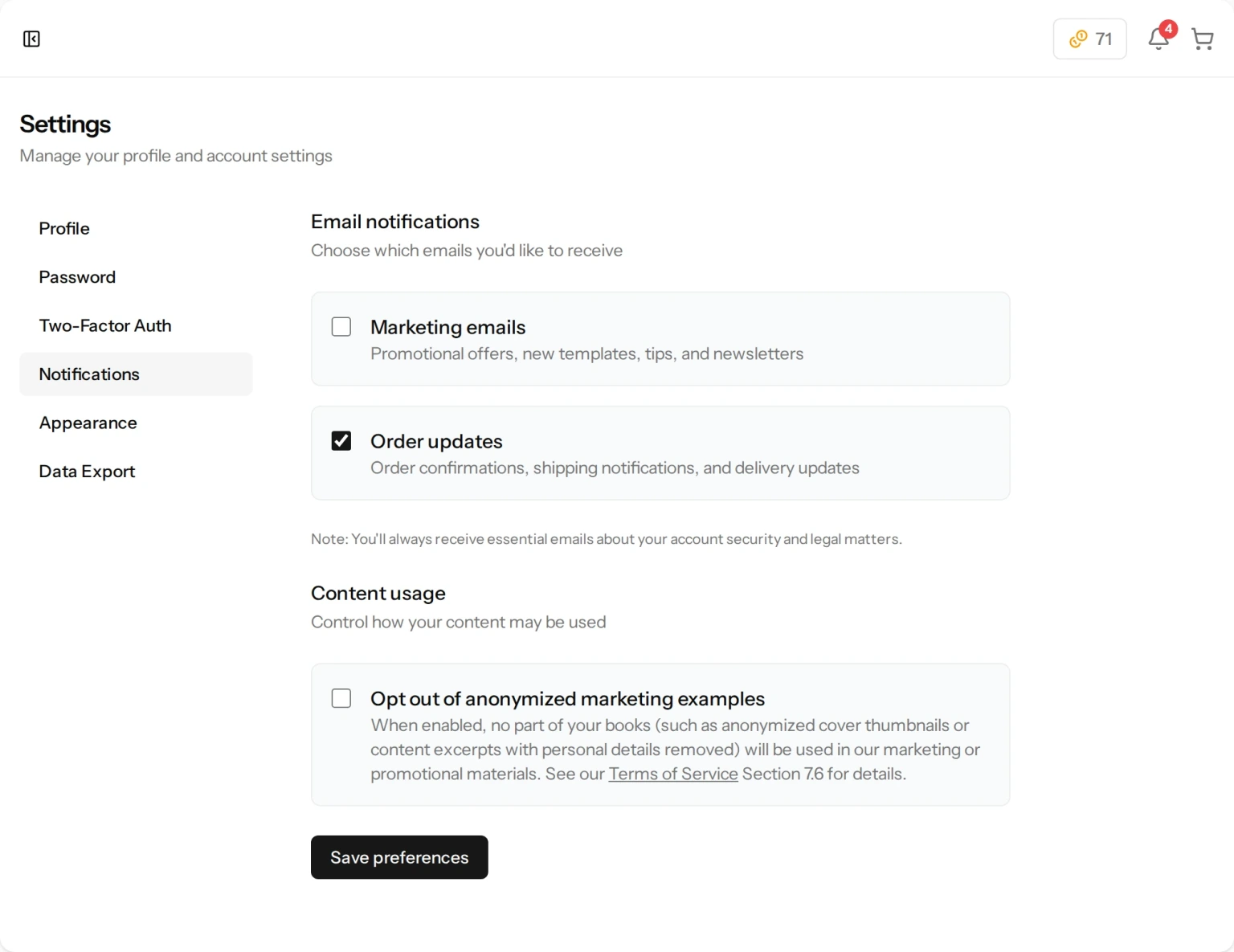
Where to Change Them
- Go to Settings from the menu at the bottom of the sidebar.
- Open the Notifications tab.
- Check or uncheck the boxes you want.
- Click Save preferences.
Nothing is saved until you click that button. There are three boxes in total: two for email, and one further down under a separate heading about how your content may be used.
Marketing Emails
Marketing emails covers promotional offers, new templates and tips. It also covers our reminder emails — the nudge when you started a book and did not finish it, the follow-up if a finished book has been sitting unreviewed, and the reminder that a book you approved has not been ordered yet. Uncheck the box and all of those stop.
You can also turn these off without signing in, using the Unsubscribe link at the bottom of any marketing email. That link only affects marketing; it never touches the emails listed under “Emails That Always Send” below.
Order Updates
Order updates controls the delivery side of a printed order: the progress emails while your book is being made, and the notices when it ships and when it is delivered.
It does not switch off your order confirmation or your receipt. Those are treated as essential, because a charge with no email about it is not something we are willing to do to anyone.
One thing to weigh before you uncheck it: the progress and shipping notices also show up in the app, but the “your parcel was delivered” notice does not. If you turn order updates off, that one reaches you nowhere, and you would check the order page yourself instead.
Emails That Always Send
These are not affected by either box:
- Sign-in codes. Every sign-in takes a second step, and unless you use an authenticator app that step is one of these — which makes it the most important email we send you.
- Password reset links and email verification links.
- Order confirmations, receipts, payment failures and refund notices.
- The email telling you a book has finished and is ready for you to review. Later reminders about that same book are marketing, and those you can turn off.
- The emails telling you a Digital Edition or an audiobook is ready to download, and the warning before a download window is due to close.
- Support ticket confirmations and replies to tickets you opened.
- Changes to our legal terms.
Most of what we send also appears in the app: click the bell at the top of the page to see your notifications there, so turning an email off usually does not mean losing the message.
The first two on that list are the exception. Sign-in codes, password reset links and email verification links are email only — there is nothing in the bell for them, because their whole job is to reach you when you are not signed in. That is why the address on your account has to be one you can actually open.
Content Usage
Below the email boxes there is a separate section headed Content usage with one box: Opt out of anonymized marketing examples.
Check it and no part of your books — not an anonymized cover thumbnail, not an excerpt with the personal details removed — will be used in our marketing or promotional materials. It is a content setting rather than an email setting, which is why it sits on its own. Section 7.6 of our Terms of Service has the full wording.
If Our Emails Are Not Arriving
Check your spam or junk folder first, and add our address to your contacts. If a sign-in code in particular never arrives, you can request a new one on the sign-in screen — see Two-Factor Authentication. If mail to your address has been bouncing we may have stopped sending to it; open a ticket from Support in the sidebar and tell us, and we will sort it out.
Still have a question?
Support tickets are part of your account. Log in or create a free account to open one.