Contacting Support
How to open a support ticket, attach a photo or screenshot, track the conversation, reply by email, and how long a reply takes.
Contacting Support
If anything has gone wrong, or you just are not sure about something, write to us. Everything goes through a ticket so the whole conversation stays in one place and nothing gets lost in a mailbox.
Creating a Ticket
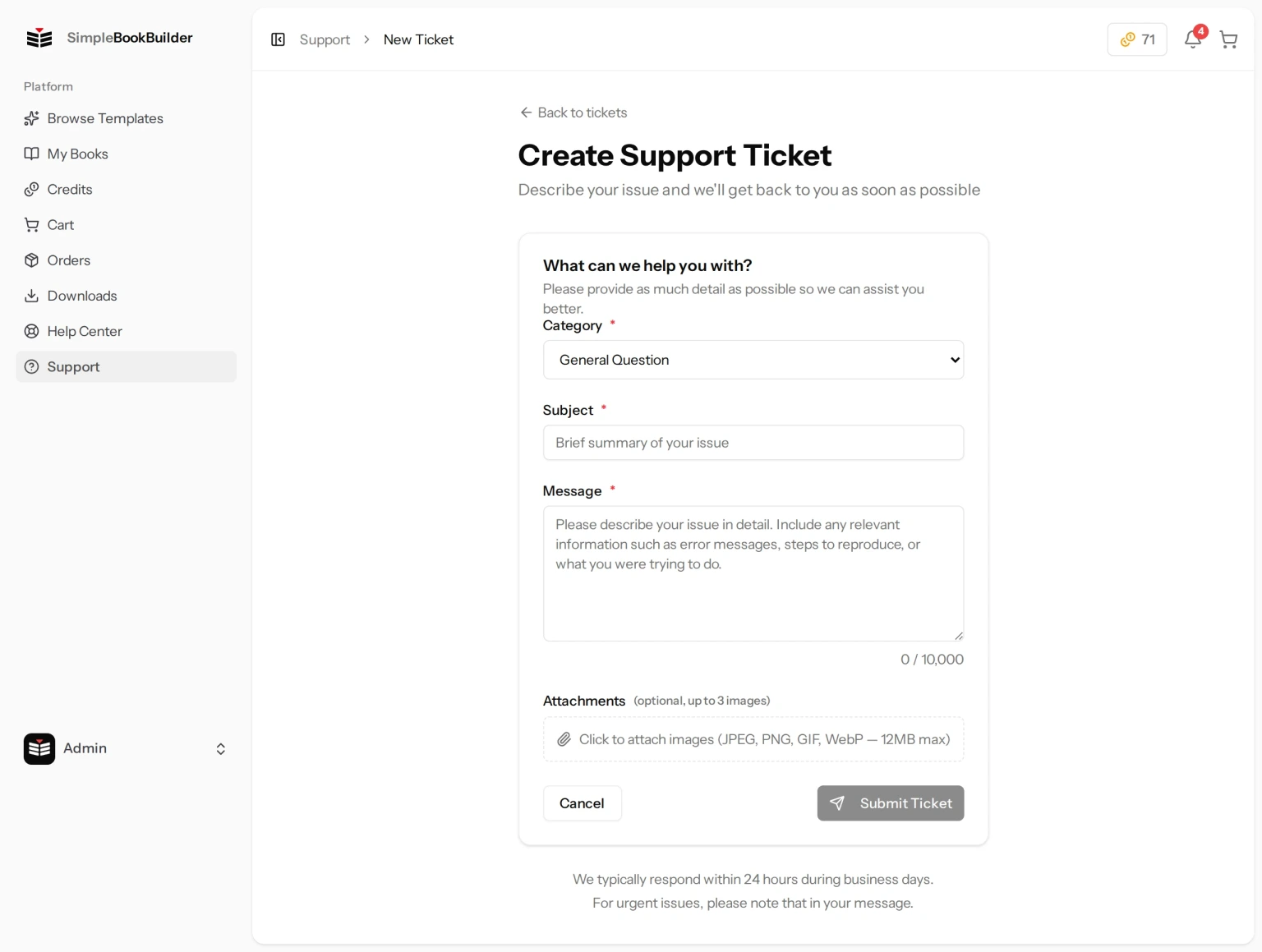
- Click Support in the sidebar.
- Click New Ticket.
- Choose a Category: General Question, Order Issue, Book Issue, Billing Question, Technical Problem, or Other.
- Choose Order Issue and a Related Order list appears; choose Book Issue and a Related Book list appears. Picking the right one saves us asking which book or order you mean.
- Write a Subject summarizing the problem in a few words.
- Write your Message. More detail is better — what you expected, what happened instead, and anything the screen said.
- Click Submit Ticket.
Subject, category and message are all required — though the category comes already chosen for you, so in practice the subject and the message are the two you have to write. Linking an order or a book is optional.
Attaching Photos and Screenshots
A picture is often faster than a paragraph — a photo of a printed page that came out wrong says far more than a description of it.
Under Attachments, click the box to pick images from your device. You can attach up to 3 images per message, as JPEG, PNG, GIF or WebP, up to 12 MB each and no more than 8000 pixels on either side. You get the same three-image allowance on each reply you send, so you can always send more later.
Tracking Your Tickets
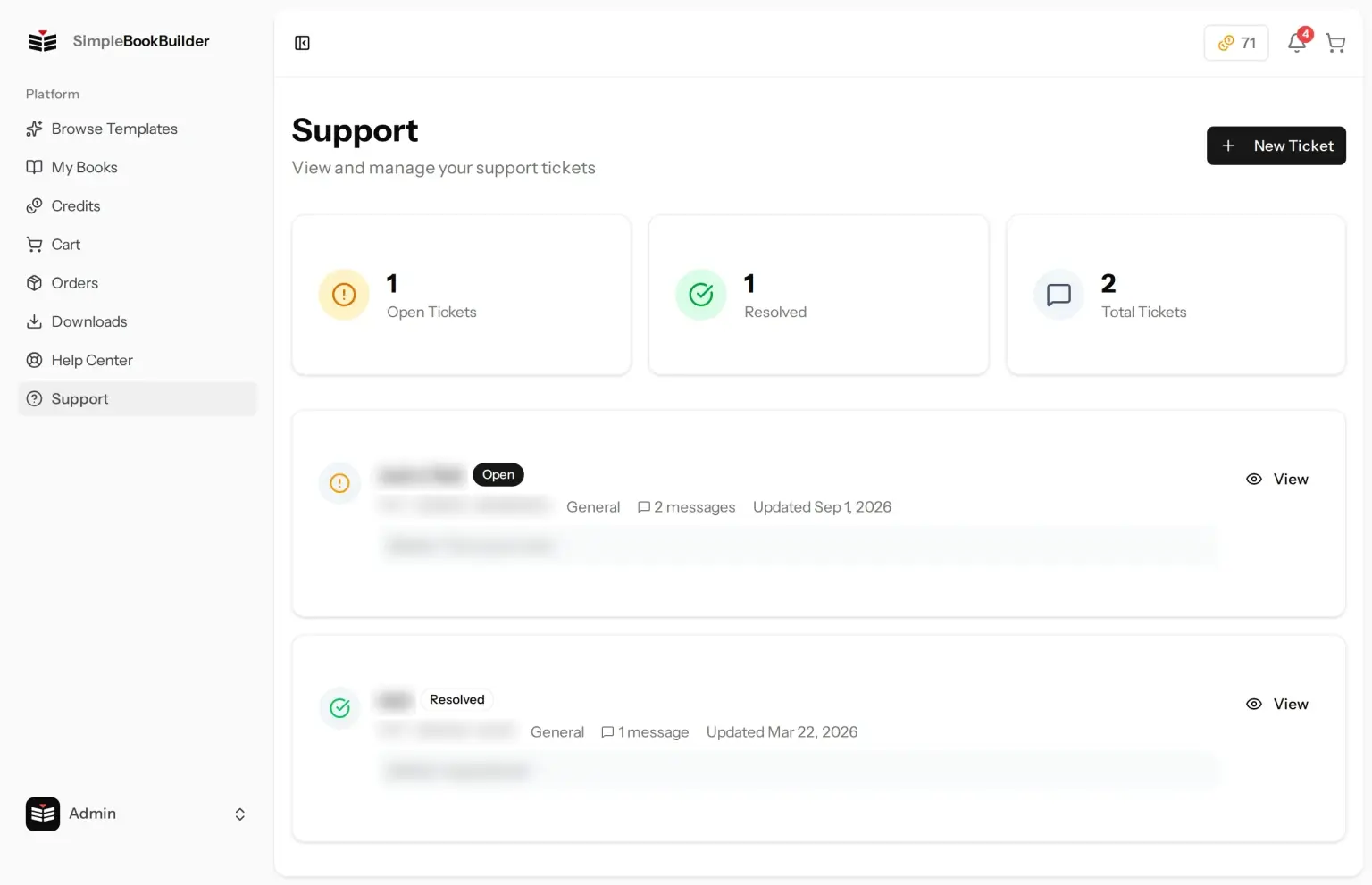
The Support page lists all your tickets. Each one shows a status badge:
- Open — with us. We have it and have not answered yet.
- Awaiting Reply — with you. We have answered and are waiting to hear back. On the ticket itself this reads Awaiting Your Reply.
- Resolved — we believe the issue is sorted.
- Closed — the ticket has been closed. We close a ticket automatically when 30 days pass after our last reply without one from you.
Alongside the status you see the ticket number, the category, how many messages the conversation holds, a preview of the most recent one, and badges for any order or book the ticket is linked to. A priority badge appears on tickets we have marked high or urgent. Three cards at the top count your Open Tickets, Resolved and Total Tickets.
Reading and Replying
Open any ticket to read the whole conversation in order. Your own messages sit on the right in a highlighted bubble; replies from us sit on the left with a Support Team badge. Every message is timestamped, and any images attached to it appear as thumbnails underneath.
The Reply box at the bottom is where you write back. Add attachments the same way as before, then click Send Reply.
Replying by Email
When we answer, you get an email. You can simply reply to it and your answer is added to the ticket automatically, with no need to sign in. If you want to send us an image, sign in and use the reply box on the ticket instead — that is where attachments go.
This also works on a ticket we have already resolved or closed: replying to the email reopens it rather than starting from nothing.
When a Ticket Is Resolved
Once a ticket is resolved or closed, the reply box is replaced by a note and a Create New Ticket button. If the same problem comes back, replying to the old email thread reopens that ticket; for anything new, start a fresh one.
How Long a Reply Takes
We typically respond within 24 hours during business days. If something is time-critical — a book about to go to print, a wrong address on an order that has just been paid — say so in the first line of your message, because the sooner we see it the more we can still change.
Still have a question?
Support tickets are part of your account. Log in or create a free account to open one.