Reviewing Your Book Proof
How to use the proof review page — the Cover, Book Pages and Page Edges tabs, the chapter reader, and how to make changes before you approve.
Reviewing Your Book Proof
When your book’s status changes to Ready for Review, you can open it to see the complete proof. This is your chance to read every chapter, look at the cover, and check how the printed pages will come out — before you approve anything.
Seeing the Physical Book
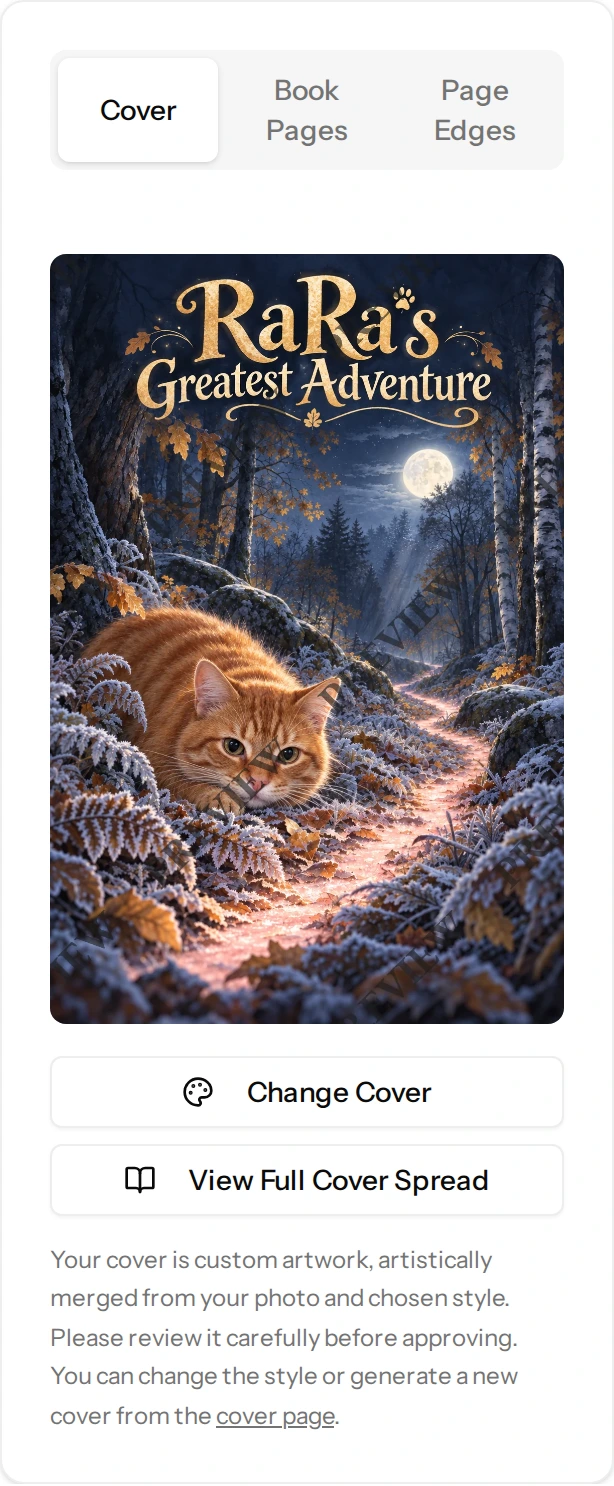
Everything about the object itself sits in one card with tabs across the top: Cover, Book Pages and Page Edges. The Cover tab is the one you land on. A tab is only there when it has something to show, so a book with no printed edge art has no Page Edges tab.
The Cover Tab
- The front cover, which you can click to see it larger. It is artwork made for your book from your photo and the style you chose.
- Change Cover — opens the cover chooser, where you can try a different style or generate a new version. Each new cover you generate costs 1 credit. The cover already on your book was made as part of writing it, so it did not cost you anything extra. See Choosing Your Cover Art.
- View Full Cover Spread — shows the front, spine and back laid out flat, the way it is sent to the printer.
The Book Pages Tab
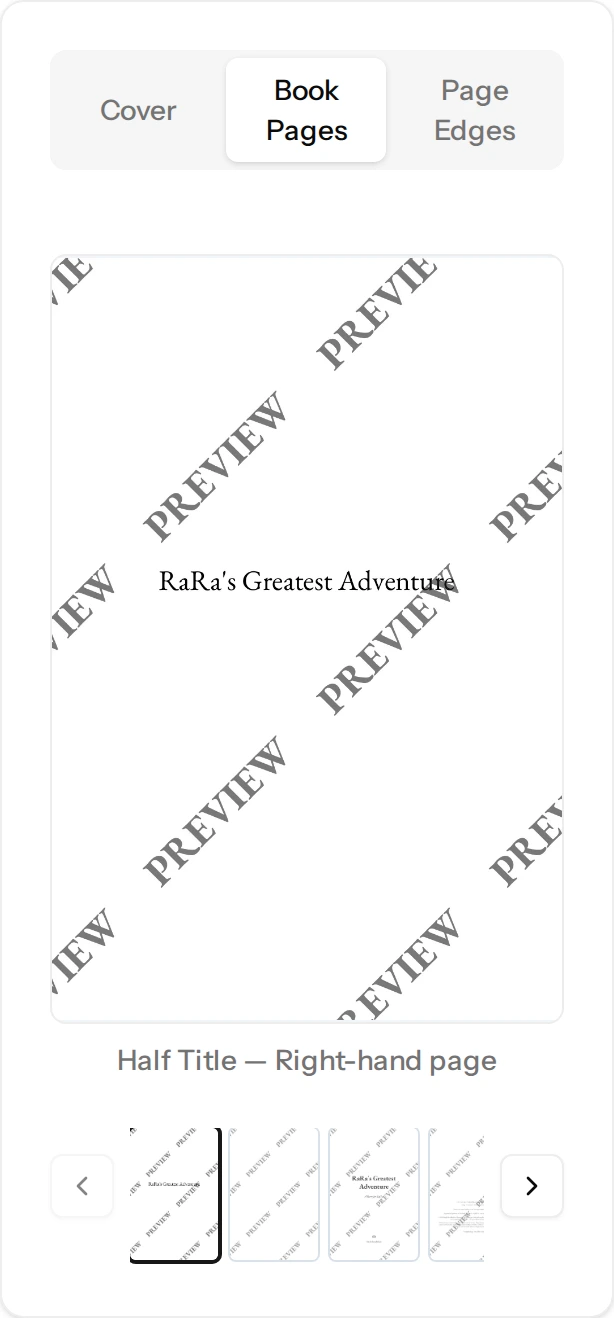
Real previews of your printed pages, one at a time at full width, with a strip of every page underneath so you can jump straight to the one you are curious about. Arrows either side step through them one by one, and each page is named below it — Half Title, Blank Page, Title Page, Copyright, Dedication, Table of Contents, Chapter Opening, Story Page, Your Printed Edge, The End, Colophon. Two of the previews really are named Blank Page: printed books traditionally leave a blank on the back of the half title and another before the story starts, and we show them so nothing about your book is a surprise. Not every book has every page — a Dedication only appears if you wrote a message or signed the book. Click a page to see it enlarged, alongside the page it faces.
The Page Edges Tab
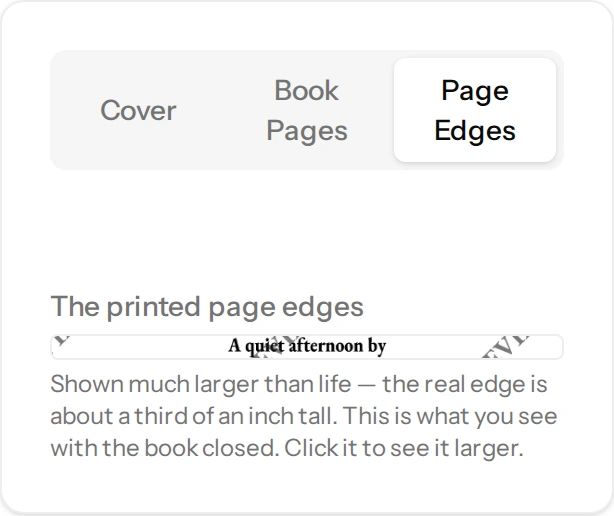
This tab appears once there is a printed edge to show you. It shows the edge of the closed book, much larger than life — the real thing is about a third of an inch tall.
Edge art needs a certain thickness of paper to sit on, so a book that comes out shorter than 100 pages cannot carry it. If that happens there is no Page Edges tab on your proof and the outer edge of the page previews is plain. The rest of the book is completely unaffected. If you were expecting edge art and cannot see this tab, open a ticket from Support and we will explain what happened with your book.
You will also see faint marks down the outer edge of some page previews. That is the edge art: every page carries one thin slice of it, and the design only appears once the pages stack together and the book is closed.
The Chapter Reader
Beside the previews is the reader, where you go through the book chapter by chapter:
- The chapter number and title, with a word count.
- A Show Personalization button, which highlights the parts of the text built from your answers so you can check your details were woven in properly. It becomes Hide Personalization once it is on, and it only appears on a chapter that has details to highlight.
- The full chapter text, exactly as it will be printed.
- Previous and Next buttons, with your place in the book (“3 of 12”) between them.
Making Changes
The buttons at the top of the proof page are how you change things:
- Polish Paragraphs — for small fixes: a typo, a wrong detail, an awkward sentence. It unlocks editing of individual paragraphs in place, for 3 credits per book, and leaves the rest of the book untouched. It appears only on a book with a written story, so a Journal Edition does not have it, and nor does a Personalized Bible, whose text cannot be edited. See Polishing Individual Paragraphs.
- Edit Answers & Regenerate — for bigger changes. Every answer you gave is editable here, including the people, pet and duration questions, and your book is then made again from the answers you end up with.
- Change Page Style — changes how the inside of the book looks: the page color scheme and the printed edge design. It costs 3 credits and does not touch a word of the story. The button is there whether or not you have the credits; you find out the cost before you commit to anything. See Page Style and Printed Edges.
Your credit balance is shown in the top bar, and every one of these asks you to confirm the cost first. You can top up on the Credits page — see Understanding Credits.
What Regenerating Costs
Edit Answers & Regenerate is also where you change what kind of book you own, if your template sells more than one edition. The dialog lists every edition you can have, with its price and its credit cost written beside it, and the edition you are on now is in that list too, so you can simply make the same kind of book again with better answers.
That is why regenerating does not have one flat price. It depends on the edition you end up choosing:
- A Written For You costs 10 credits, because every chapter is written for you again from the beginning.
- A Journal Edition, a Ready-Made Story, With Your Names in It or a Ready-Made Story, Fitted to You costs 5 credits, because those insides are put together rather than written — a ready-made story is assembled again from the manuscript written in advance, with your details set into it.
The button on the page carries the 10-credit figure. The dialog shows what your choice costs, and you confirm that number before a single credit is spent.
Fixing a Misspelled Name
A name usually appears throughout the whole book, so Edit Answers & Regenerate is the right tool for it — correct the spelling in the person or pet question and the book is made again with the name right everywhere. On a Written For You that means the chapters are written afresh, for 10 credits; on a ready-made edition the same manuscript is simply assembled again with the corrected name, for 5 credits. Polish Paragraphs only changes the specific paragraphs you edit, so it would leave the name wrong everywhere else.
What to Look For
- Names and details — check every personalized detail is correct and spelled the way you want it.
- The story itself — read each chapter properly. This is the version that gets printed.
- Cover art — make sure the cover is one you are happy to have on a shelf.
- Page previews — look through them to see the physical layout, the page color and the printed edges.
When you are happy, see Approving Your Book.
After Your Book Arrives
Once your copy has reached you, this same page invites you to review it — “How did your book turn out?”, with a Write a review button. See Reviewing a Book You Received.
Still have a question?
Support tickets are part of your account. Log in or create a free account to open one.