Navigating the Platform
Finding your way around once you are signed in: the sidebar links, the credits badge, the notifications bell, the cart icon, the Settings and Log out menu, and where the menu goes on a phone.
Navigating the Platform
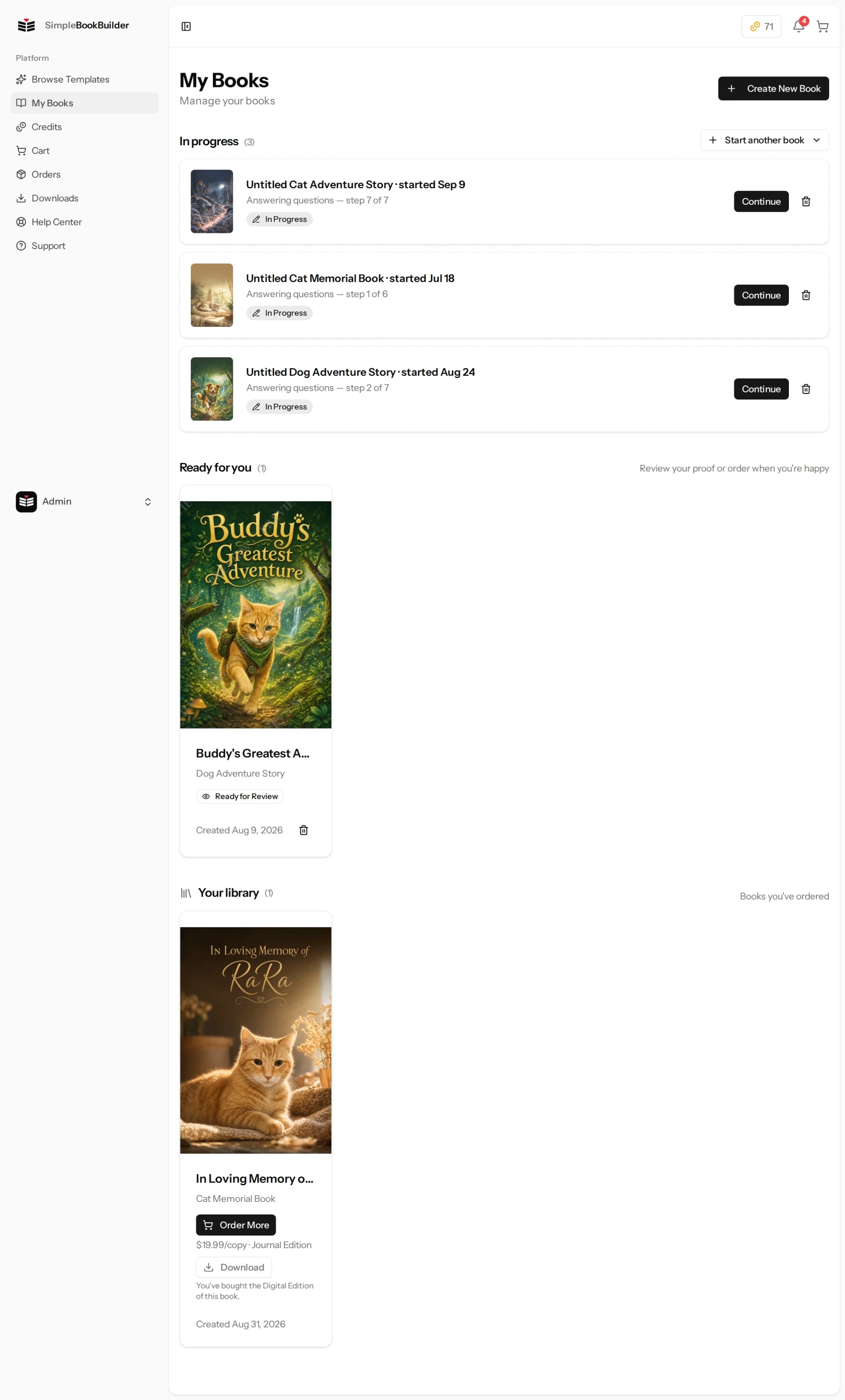
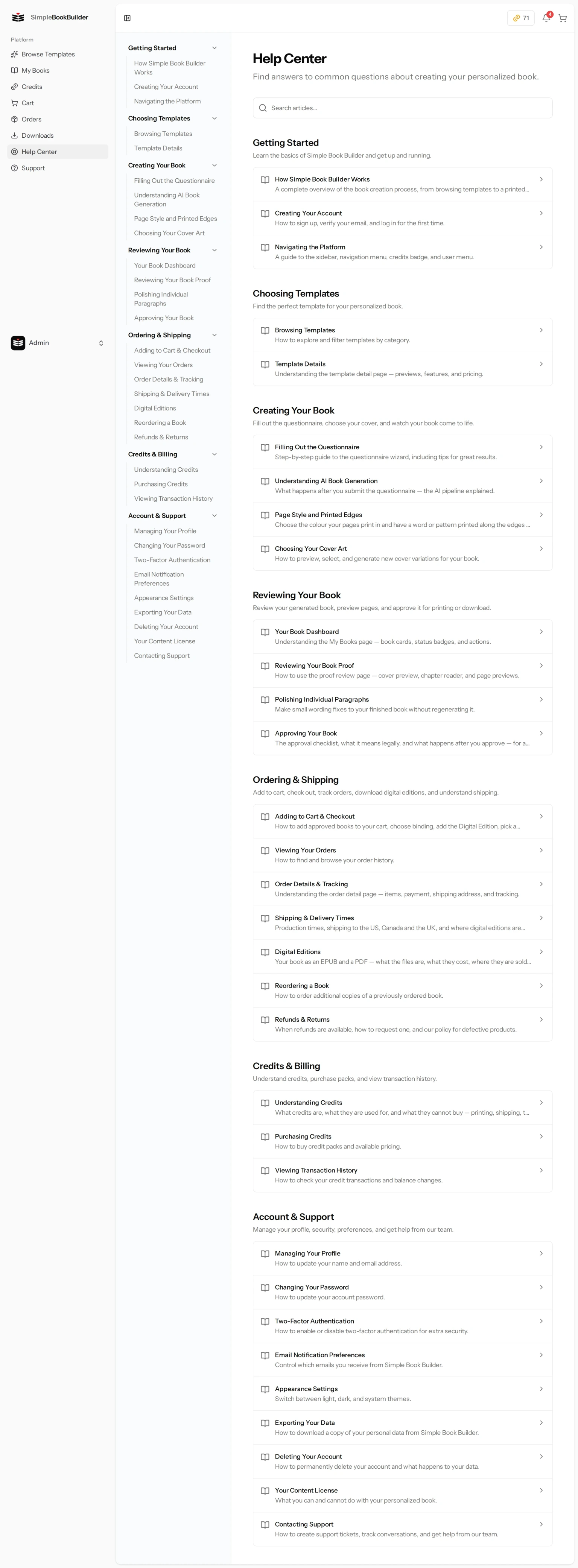
Once you are signed in, every page has the same frame: a navigation sidebar down the left, and a slim bar across the top with your credits, your notifications and your cart.
Sidebar Navigation
The left sidebar is your main navigation. It has the same eight links on every page:
- Browse Templates — Browse and filter every book template we sell.
- My Books — Every book you have started, and how far along each one is.
- Credits — Your credit balance, and where you buy more.
- Cart — The books you are ready to order.
- Orders — Your orders, with printing and shipping progress.
- Downloads — The files for books you have bought: the EPUB and PDF of a Digital Edition (the PDF alone for a Journal Edition made only of writing pages), and the MP3 if you bought an audiobook. It is always listed, even before you own anything you can download.
- Help Center — These articles.
- Support — Write to us, and read our replies. See Contacting Support.
Your own name sits at the very bottom of the sidebar. Click it and a small menu opens with Settings and Log out.
The Top Bar
- Credits — A small coin badge with your current balance. Clicking it opens the Credits page.
- Notifications — A bell, with a red count when something is unread. Open it to read alerts such as “Your Book is Ready” or “Order Shipped”. Mark all as read clears the red count, the small cross on a single alert removes that one, and Clear all notifications empties the list. When there is nothing waiting it simply says “No notifications”.
- Cart — A cart icon with the number of items in it. Clicking it opens your Cart.
Most of what the bell shows you is emailed to you as well, so an alert you clear here is not one you lose. Which emails we send is up to you on the Notifications tab in Settings — see Email Notification Preferences.
On a Phone
On a narrow screen the sidebar is tucked away to leave room for the page. Tap the panel icon at the top left of the page to slide it open, and tap it again to close it. The credits badge, the bell and the cart stay on the top bar at all times.
Still have a question?
Support tickets are part of your account. Log in or create a free account to open one.