Choosing Your Cover Art
Preview your cover, generate a new one, and see the full printed spread. What Change Cover costs in credits.
Choosing Your Cover Art
Your cover is artwork made for your book from the cover design you chose in the wizard and, if you uploaded one, your photo. It is made while the book is being generated, and you see it on the proof page when your proof is ready. See Reviewing Your Book Proof for the rest of that page.
Cover Preview
On the proof page the cover is the first tab of the media panel, labeled Cover. Click the cover image to view it at full size.
Changing Your Cover
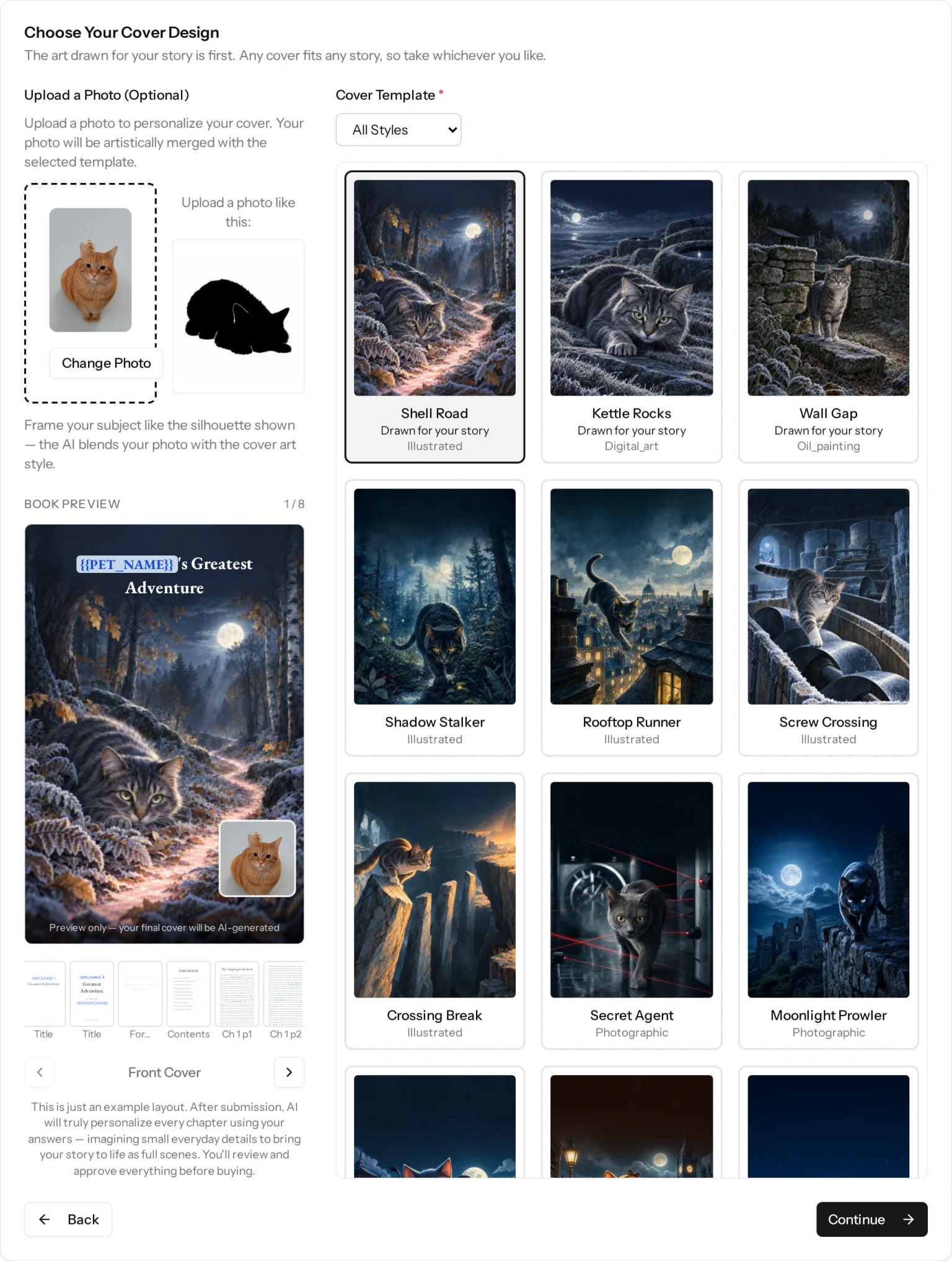
If the cover is not what you hoped for, the Change Cover button below the preview opens the cover designer, headed Customize Your Cover. There you can choose a different cover design, swap or add a photo, and press Generate Preview.
Every new cover you generate there costs 1 credit, from the first one. The cover you already have is the free one — it was made for you as part of generating the book — so anything after it is a paid redo. The price is shown just above the Generate Preview button, and a confirmation box asks you to agree to spending the credits before anything is made, so it cannot happen by accident.
Nothing is thrown away. Every cover you generate stays in the picker, so you can go back to an earlier one without paying again. When you have found the one you want, press Use This Cover to put it on your book.
If you have run out of credits, the button becomes Purchase Credits to Generate Preview and takes you to the Credits page. Your current balance is shown on that screen. See Purchasing Credits.
Cover Spread Preview
Back on the proof page, View Full Cover Spread shows the whole printed cover laid out flat — back cover, spine and front cover together, the way the sheet is printed before it is wrapped around the book. You can switch between:
- Paperback and Hardcover — the dimensions differ slightly between the two bindings, so the spread is not identical.
- Print Boxes — shows the trim and bleed areas the printer cuts to, which is useful if you want to check nothing important sits too close to an edge.
Changing It After You Approve
The Change Cover button is only there before you approve your proof. Approving is what fixes the book for printing, cover included, so it is worth looking properly at the cover and the spread first.
Still have a question?
Support tickets are part of your account. Log in or create a free account to open one.